Authentication Flow Setup
Wire the Email OTP authenticator into a Keycloak authentication flow and configure realm email settings.
Step 1 — Configure Realm Email (SMTP)
- Login as admin to your Keycloak installation
- Switch to your target realm
- Navigate to Realm Settings → Email tab
- Fill in your SMTP server details:
| Field | Example |
|---|---|
| SMTP Host | smtp.gmail.com |
| SMTP Port | 587 |
| From Email | noreply@yourdomain.com |
| Enable StarTLS | ✅ |
| Username / Password | your credentials |
See Email Provider Configuration for more details on these settings.
Step 2 — Create the Authentication Flow
a) Copy the Browser Flow
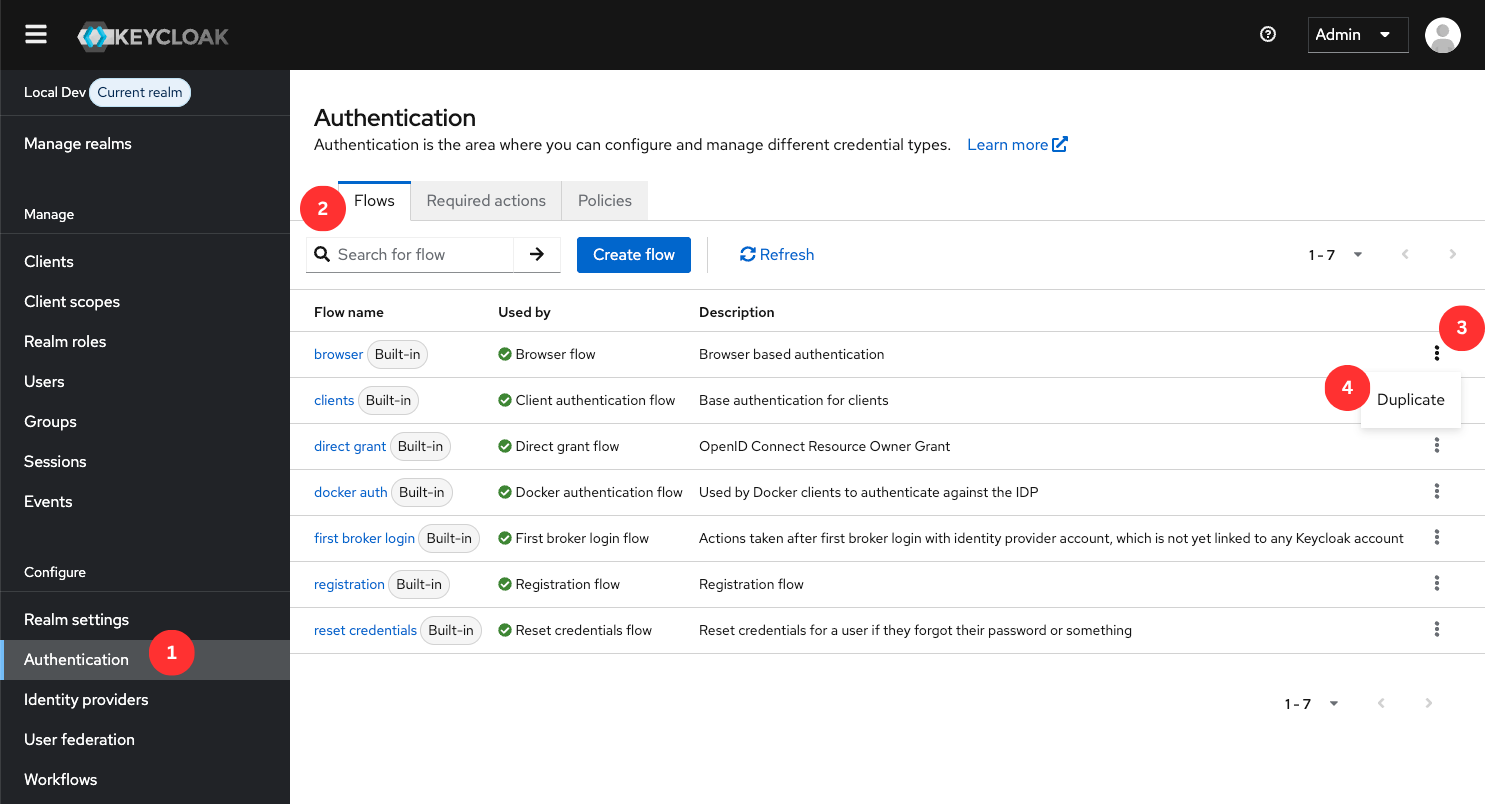
- Navigate to Authentication
- Inside the Flows tab, locate the Browser flow
- Click the "⋮" (overflow) menu
- Select "Duplicate"
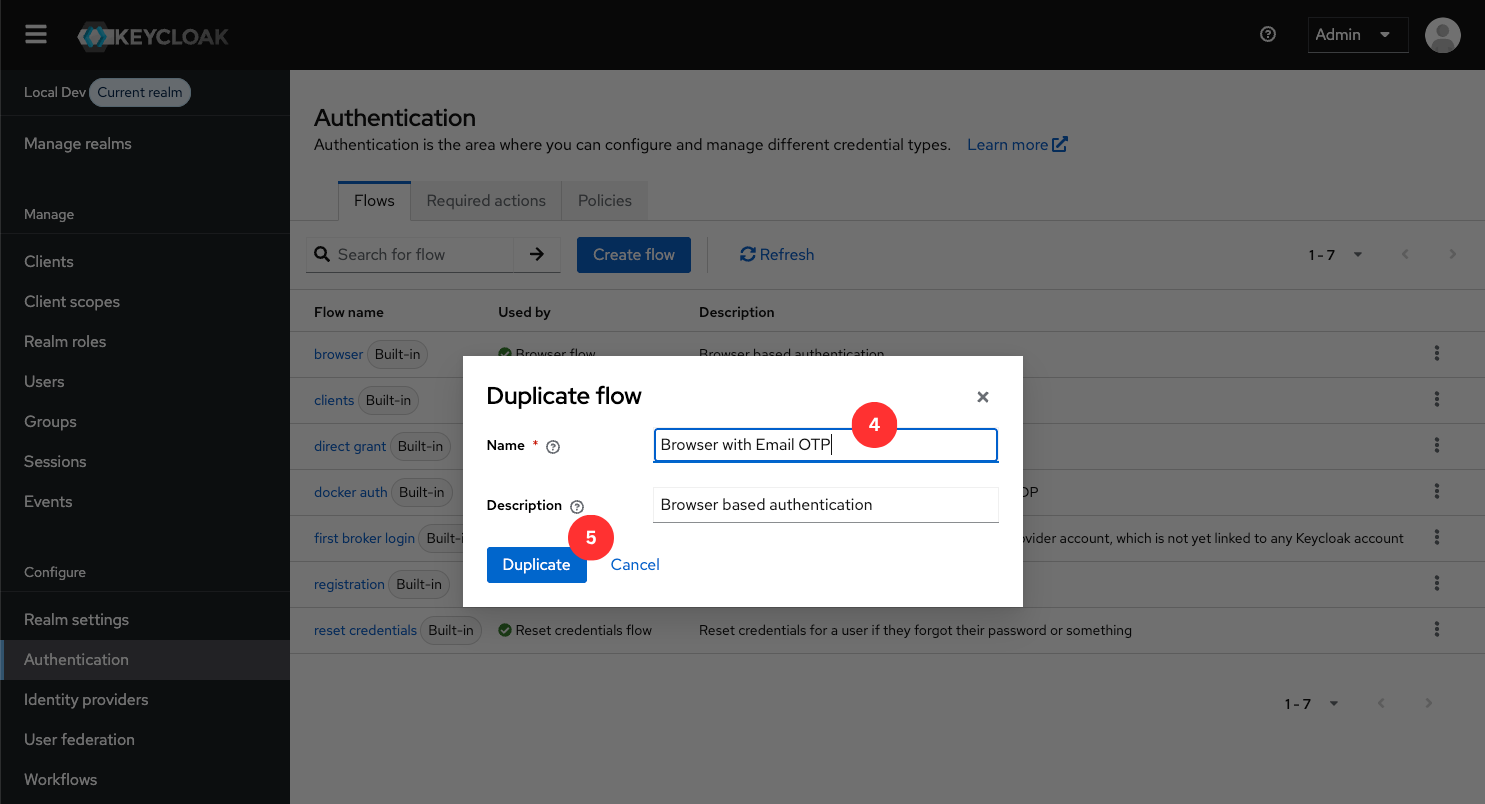
- Name it
"Browser with Email OTP" - Click "Duplicate" to create the new flow
b) Add the OTP Execution
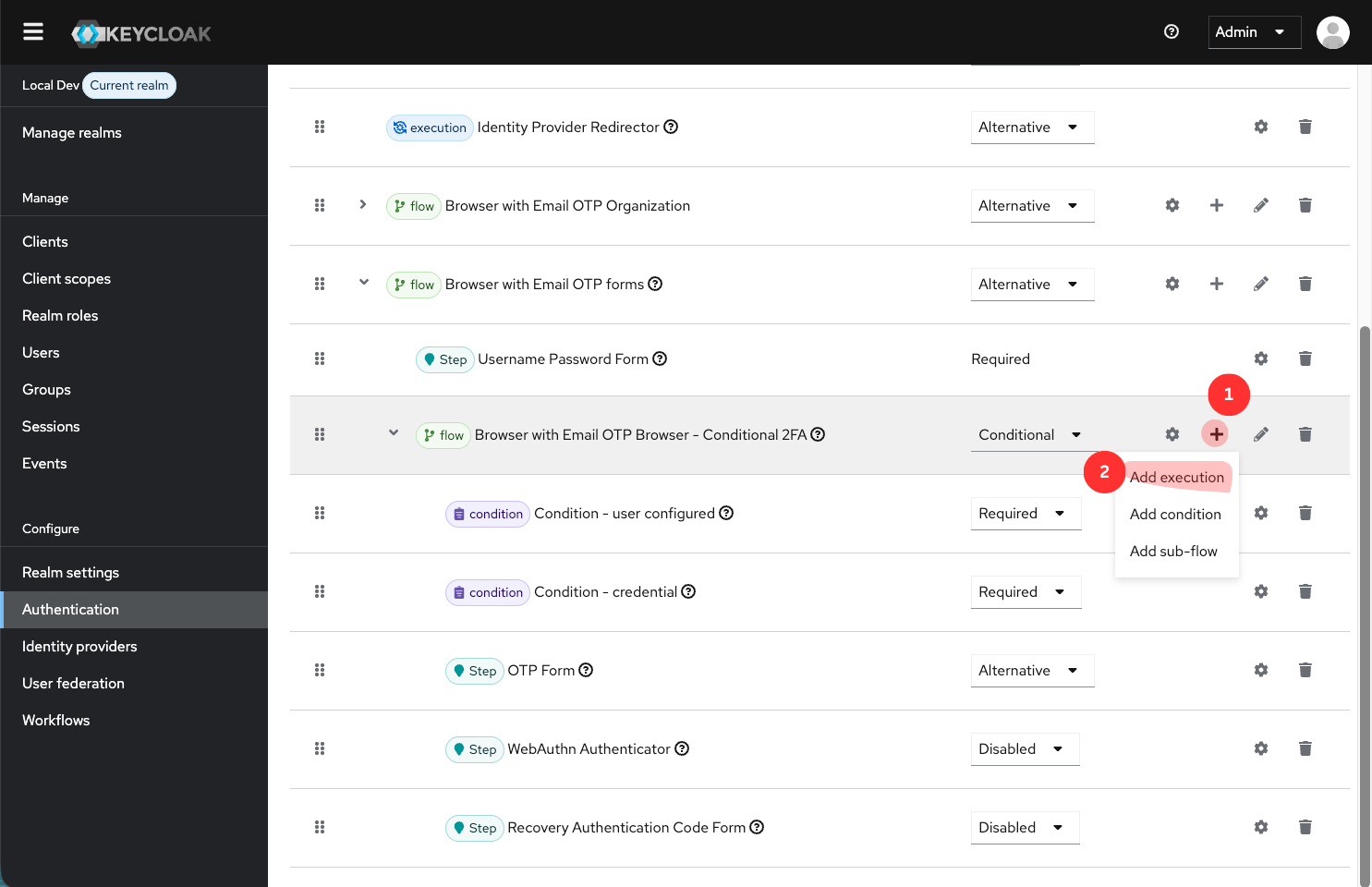
Inside the copied flow, locate the "Browser with Email OTP Forms - Conditional 2FA" sub-flow. This is where the OTP step lives alongside username/password.
- Click "+" Add on the right side of the Forms row
- Click "Add execution"
Choose your execution type depending on who should get the OTP step:
| Execution | Who is asked for a code | Shown under "Try Another Way" | "Condition - User Configured" |
|---|---|---|---|
| Email OTP | Users who have enrolled the email authenticator | Only to enrolled users | True only for enrolled users |
| Email OTP (No Enrollment) | Every user with an email address, no enrollment | To every user, including those who never enrolled | True for every user with an email |
| Conditional Email OTP | Enrolled users, filtered by role / attribute / header | Only to enrolled users | True only for enrolled users |
:::info Why two "Email OTP" executions? Keycloak decides whether an authenticator is tied to a stored credential from its type, not from its settings. A credential-based authenticator is only offered under "Try Another Way" to users who already have that credential. Email OTP follows Keycloak's convention for built-in second factors. Email OTP (No Enrollment) is the variant for realms where having an email address is enough. :::
- Email OTP
- Email OTP (No Enrollment)
- Conditional Email OTP
Use this when: you want OTP enforced for every user, every login — no conditions.
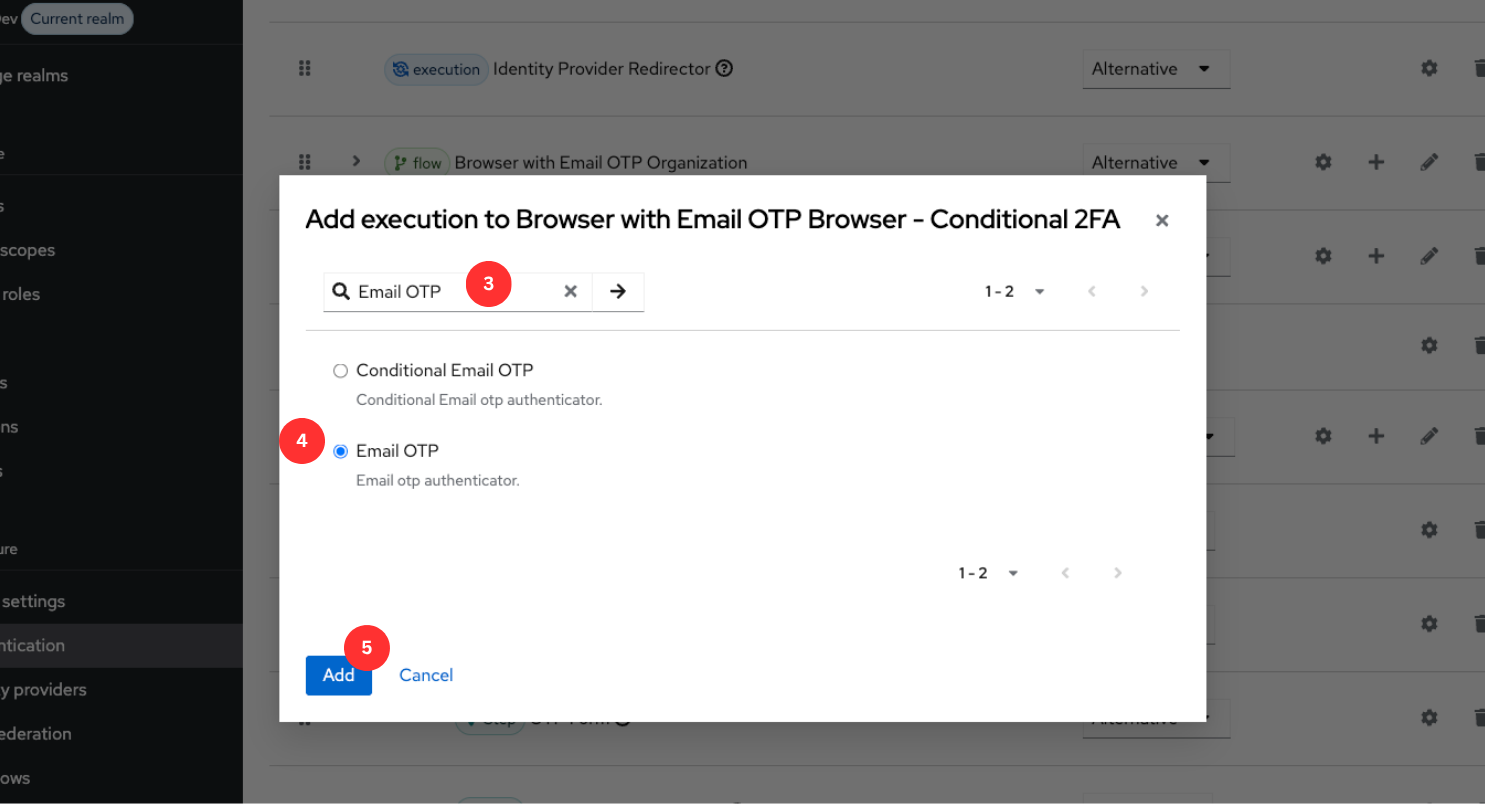
- Search for and select "Email OTP"
- Click "Add"
- On the "Email OTP" row, set the requirement:
| Requirement | Behaviour |
|---|---|
| REQUIRED | Every login always prompts for an OTP code |
| ALTERNATIVE | OTP is offered but skipped if another factor already satisfies the flow |
| DISABLED | OTP step is never triggered |
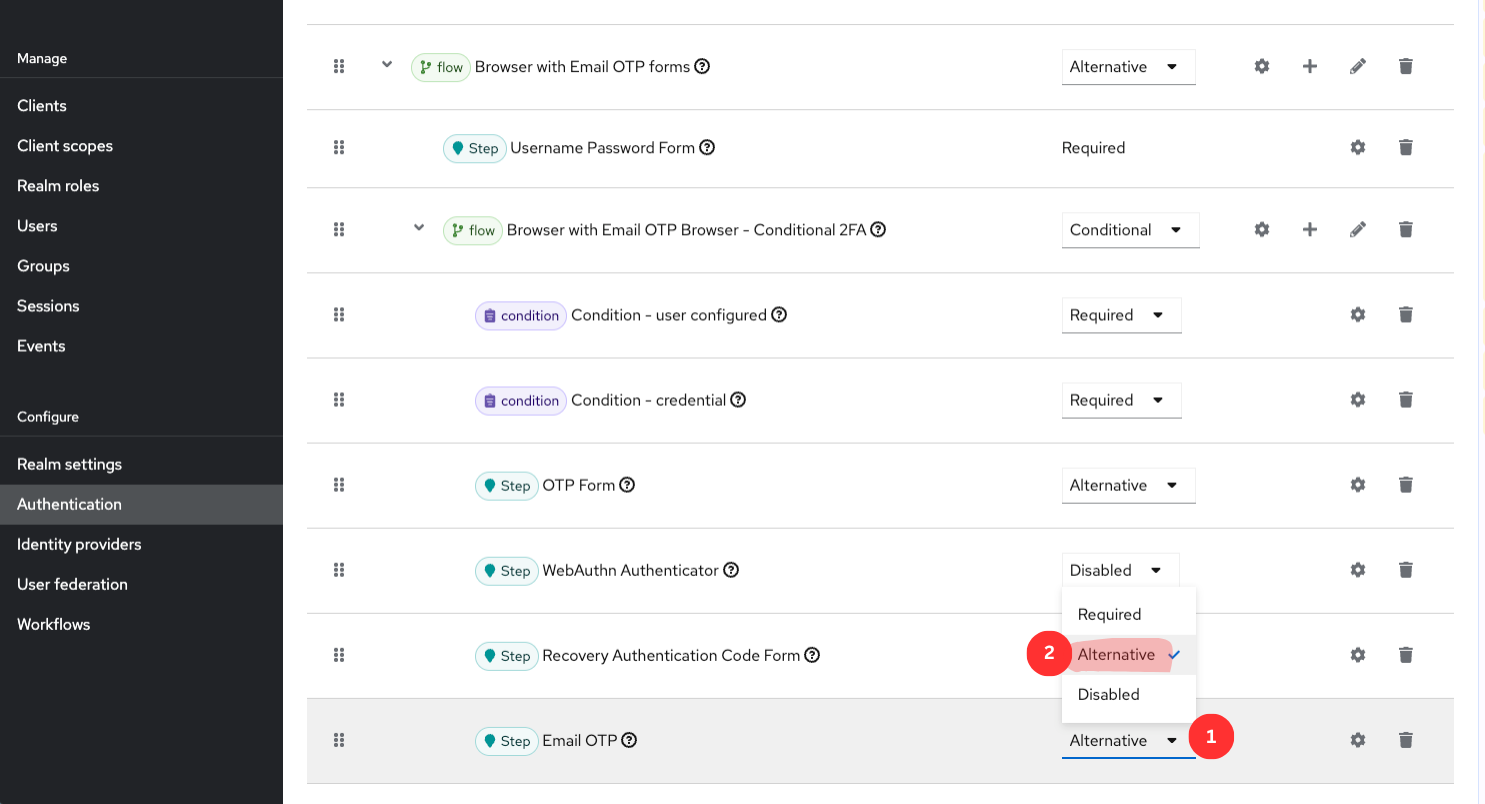
Use REQUIRED for the strictest security. Use ALTERNATIVE only if you have other authenticators in the same flow that can substitute for OTP.
Use this when: every user with an email address should be able to receive an OTP without enrolling first. Examples: admin-provisioned accounts, or offering email OTP under "Try Another Way" next to OTP or WebAuthn.
- Search for and select "Email OTP (No Enrollment)"
- Click "Add"
- Set the requirement as described in the Email OTP tab
Keycloak lists non-credential authenticators under "Try Another Way" for every user. A user without an email address will also see the option, and choosing it shows Keycloak's "credential setup required" error. Make sure users have an email address, or use Email OTP with enrollment.
Use this when: you want OTP triggered only for certain users — for example, users with a specific role, or using a specific attribute, etc.
The settings details will be covered in the next section.
- Search for and select "Conditional Email OTP"
- Click "Add"

A sub-flow appears with the condition executions inside it.
- Click "Add condition" inside the Conditional Email OTP sub-flow
- Choose a condition type:
| Condition | Behaviour |
|---|---|
| Condition - User Configured | OTP only fires for users who have already set up this authenticator |
| Condition - User Role | OTP only fires for users belonging to a specific realm or client role |
- Click "Add", then click ⚙️ on the condition row to configure it (e.g. select the target role)
If you need OTP for all users with no conditions, use the Email OTP tab instead — it is simpler to configure and maintain.
c) Bind the Flow
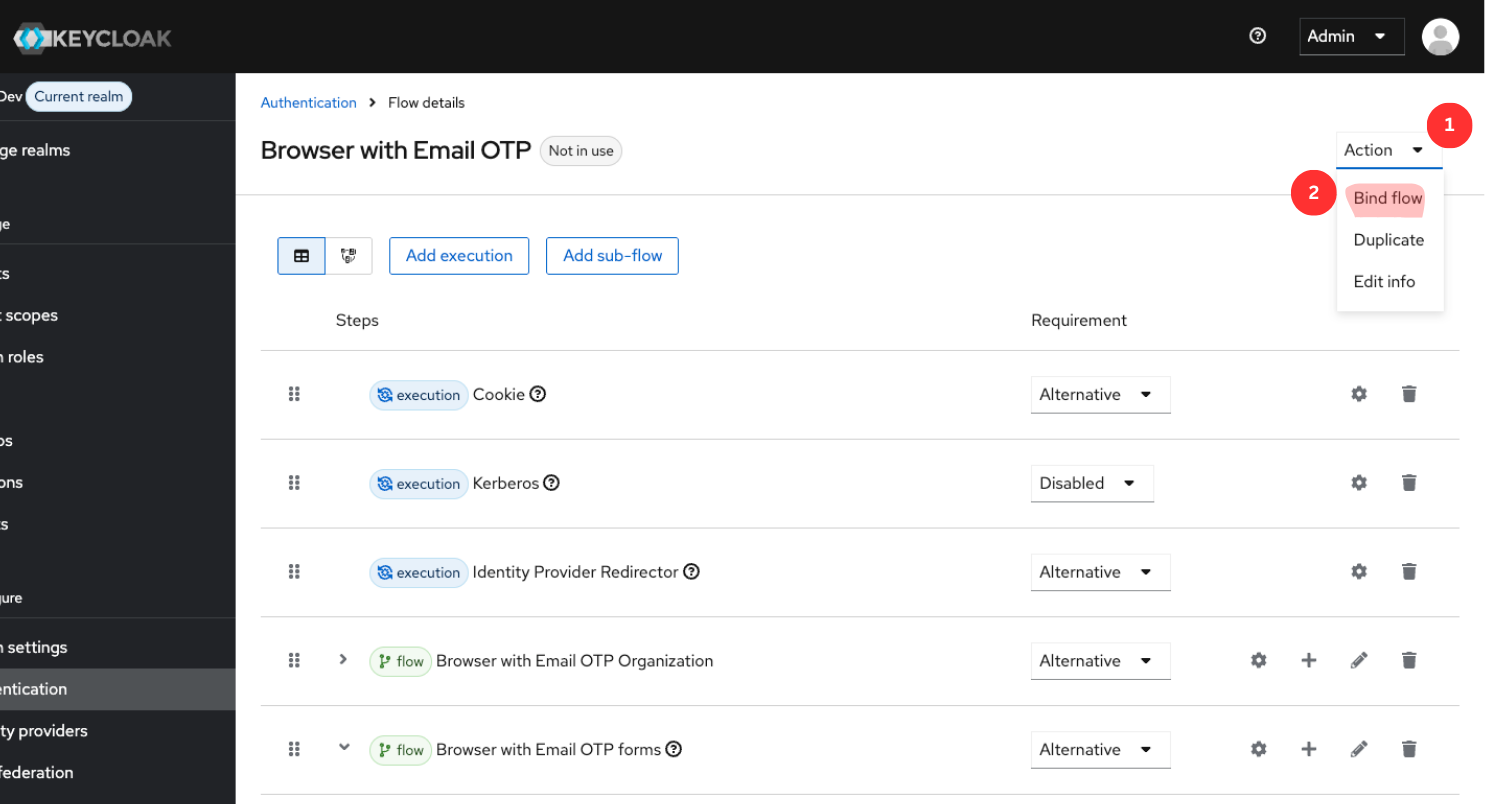
- At the top right of the flow editor, click the "Actions" menu
- Select "Bind flow"
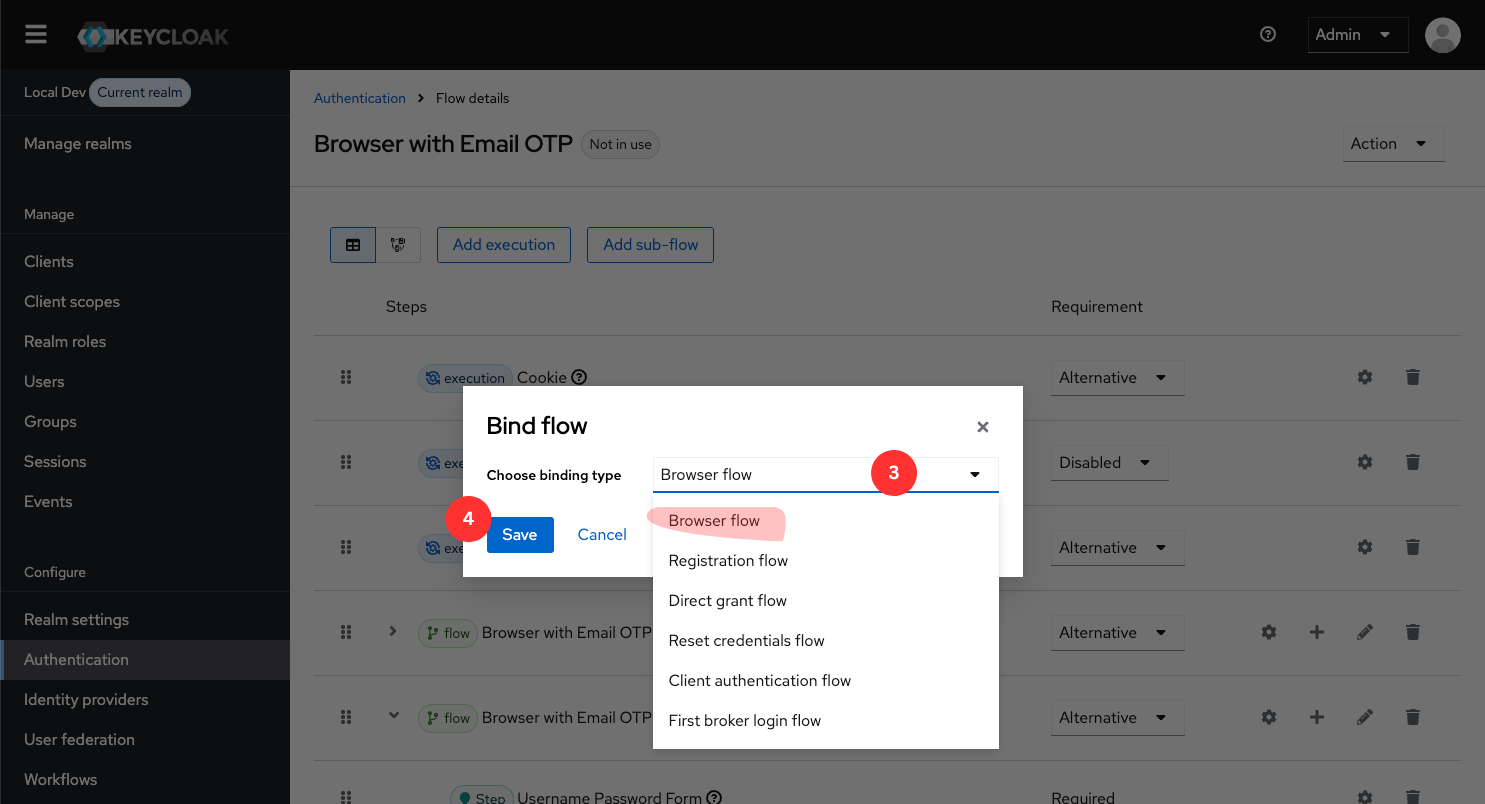
- Set Binding type to Browser flow
- Click "Save"
After binding, the new flow will replace the default Browser flow for all browser-based logins.
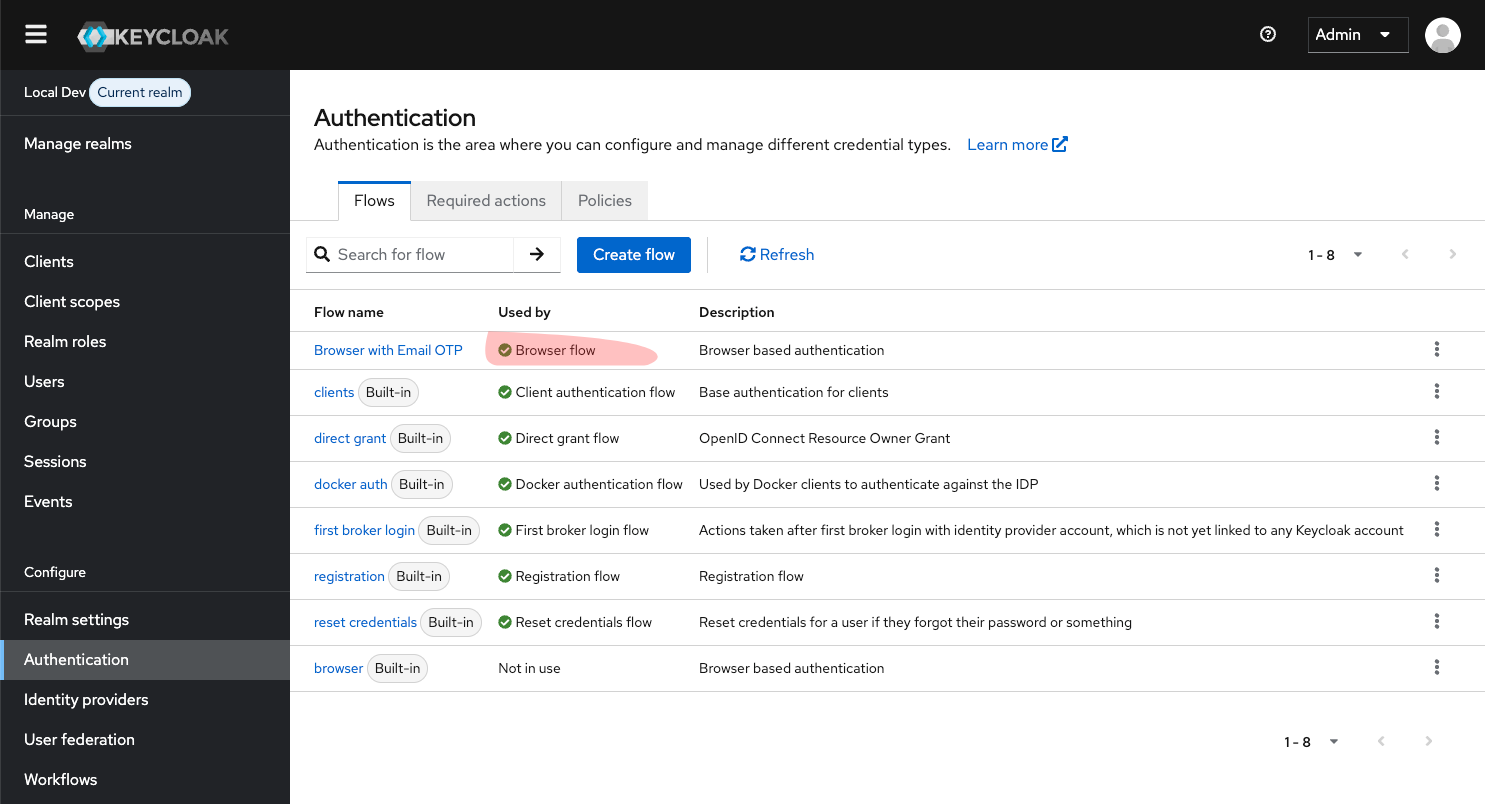
Resulting Flow Structure
After completing the above steps, when users log in through the browser, after successfully entering their username and password, they will be prompted to enter an OTP code sent to their email (if they have one configured and the requirement is met).
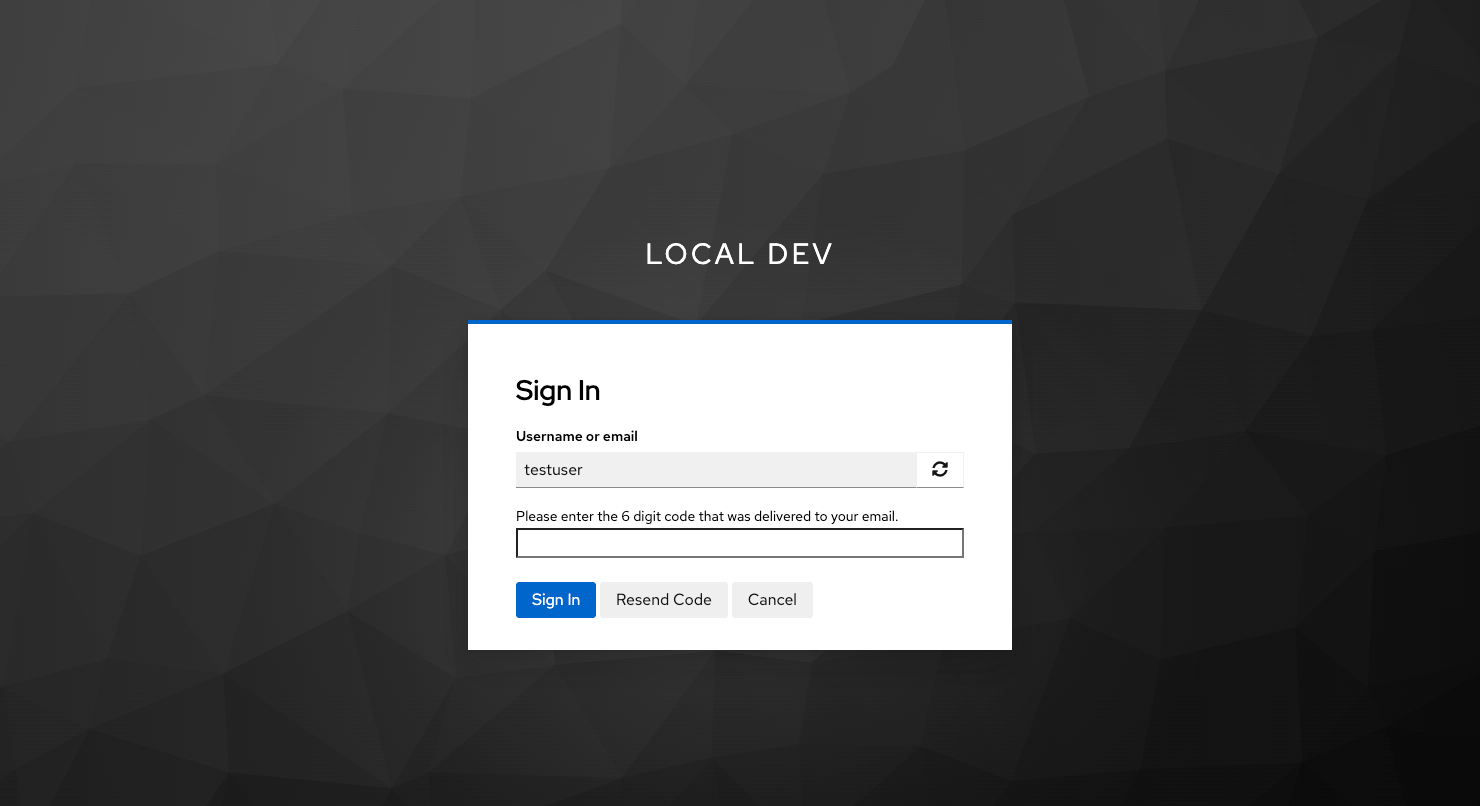
Step 3 — Configure Email OTP Settings
Click the ⚙️ Settings icon on the "Email OTP" row to open the authenticator configuration panel.
Settings reference
| Setting | Description | Default | Recommended (prod) |
|---|---|---|---|
| Code length | Number of digits in the OTP code | 6 | 6 |
| Time-to-live | Seconds before the code expires | 300 | 300 |
| Simulation mode | Log codes to server logs instead of sending emails | false | false |
| Resend cooldown | Seconds a user must wait before requesting a new code | 30 | 60 |
| Max code attempts | Wrong attempts allowed before the code is invalidated | 5 | 3 |
| Show masked email on OTP form | Show a masked version of the destination email on the OTP login and enrollment screens | false | true |
| Auto-enrol users whose email is already verified | Enrol users with a verified email without sending a setup code (Email OTP and Conditional Email OTP only) | false | depends on how emailVerified is set in your realm |
Setting details
Code length
Controls how many digits are in the OTP. 6 is the industry standard and what users expect. Increasing to 8 adds marginal security at the cost of more user errors.
Time-to-live
How long (in seconds) the code remains valid after being sent. 300 seconds (5 minutes) is a good balance between security and usability. If your users report codes expiring too quickly (e.g. they check email on a slow device), increase to 600.
Simulation mode
When true, no email is sent — the OTP code is written to the Keycloak server log instead. Use this during development and local testing to avoid needing a real mail server.
docker logs keycloak | grep "SIMULATION MODE"
# ***** SIMULATION MODE ***** Email code send to test@example.com for user testuser is: 123456
Never enable simulation mode in production — codes are visible in plain text in the logs.
Resend cooldown
Prevents users from spamming the "Resend code" button. The default of 30 seconds is fine for development; increase to 60 in production to reduce email abuse.
Max code attempts
After this many wrong attempts, the current code is invalidated and the user must request a new one. Lower values (e.g. 3) make brute-forcing harder but may frustrate users who mistype frequently.
This limit applies whether or not the realm has Brute Force Detection enabled. When it is enabled, each wrong code also counts towards the realm's lockout (reported to Keycloak as an otp failure), so the limit stops guessing against one code and the lockout stops an attacker who keeps requesting new ones. On Keycloak 26.5 and earlier a wrong code already counts towards the lockout; from 26.6 on Keycloak ignores failures outside its own categories, so this extension reports them explicitly. A correct code is accepted as an otp success, which also clears the realm's secondary-factor counter (Max secondary auth failures), so occasional typos do not add up to a permanent lockout.
Show masked email on OTP form
When enabled, the authenticator injects a server-generated maskedEmail attribute into the OTP form and displays it to the user, for example u***e@example.com. This improves UX by confirming where the code was sent without exposing the full address.
This applies both to the OTP login form and to the verification step of enrollment, so the user knows which mailbox to check in either case.
This setting is intentionally implemented server-side. It does not depend on ${user.email!} being present in the FreeMarker login template context.
Upgrading from "Skip setup"
Earlier releases had a Skip setup option ("Treat any user with an email as configured"). It has been replaced by the Email OTP (No Enrollment) execution, because a setting cannot change how Keycloak lists an authenticator under "Try Another Way".
On first startup after the upgrade, the extension migrates existing realms automatically:
- Skip setup applied to the whole realm: enabling it on any Email OTP or Conditional Email OTP execution affected every one of them. So if it was enabled anywhere in a realm, every Email OTP execution in that realm is switched to Email OTP (No Enrollment), keeping its other settings. Users who never enrolled still get a code.
- Conditional Email OTP executions in such a realm cannot be switched. The server log shows a
WARNnaming the realm and flow, only on that first startup. From now on, these executions only ask enrolled users for a code. Ask the remaining users to enroll, or redesign the flow around Email OTP (No Enrollment). - The obsolete setting is removed from every Email OTP configuration.
:::warning Behaviour change for users without an email address Previously, a REQUIRED Email OTP step with Skip setup enabled let users without an email address log in without any OTP. A REQUIRED Email OTP (No Enrollment) step blocks them instead, with Keycloak's "credential setup required" error. Make sure every user who goes through that step has an email address. :::
Check the server log after upgrading:
docker logs keycloak | grep SkipSetupMigration
What's Next?
- Email Provider Configuration — configure SendGrid, AWS SES, Mailgun, or SMTP
- Template Customization — customize the OTP email appearance